
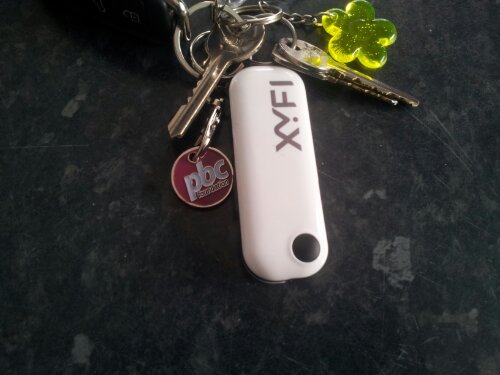
I know what most of you guys are thinking. “Why do I need a MiFi?” or perhaps even, “What is a MiFi?”
Put simply, it’s a gadget you stick your SIM card in. It’ll connect to the internet through the mobile network and then beam out a WiFi hotspot that you connect to. Sure, your smartphone can produce a hotspot in a similar way, but there’s the faff of being on the right tariff and turning it on when you want to use it.
This is where a Mifi comes in. Turn it on and you’ll have a secure hotspot to connect to, simple as that. However, this isn’t actually a MiFi hotspot in the traditional sense. For a start there’s no on-board power, so you need to have it plugged into a USB socket else it just won’t work. In the box there’s an adaptor which lets you plug the XYFI into your car via the cigarette lighter. Indeed, when you get the box it’s actually emblazoned with “In-car WiFi”.
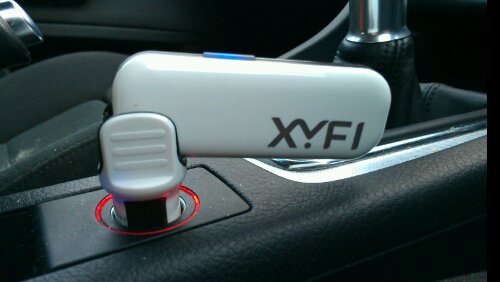
To get going you stick your SIM card in, then plug it into your laptop. A flip-out USB connector is the first indicator of how small this is. It’s a small half-height USB connector, the sort you see in those free USB pens that sometimes get handed out by companies.
The people at Option, who supply the XYFI personal hotspot, actually sell power extensions too. This means that you can plug your ultra-small (the world’s smallest by the way) hotspot into a mobile charging box and take it out to the park. This of course increases the bulk somewhat, but if you have your laptop kicking around you can at least use that instead.
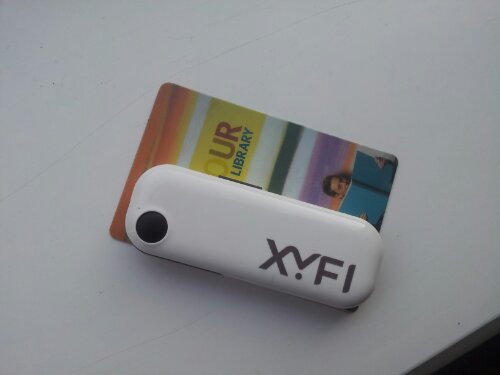
When they say small, they do really mean small. I took this comparison shot next to a library card..
Up to 8 devices can connect to this and there’s an easy-to-use control panel for setting everything up. If you’re swapping around a SIM card then there’s a section for adding the APN and you can see how much data you’re using too. I thought it best to take you through the setup, just to show you how easy it is.
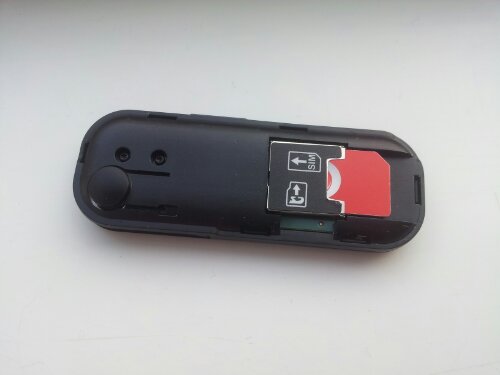
First, whack the SIM card in. You can get some good deal on SIM-only or monthly data plans, so have a nose for the best one. Those nice people at Option loaned us a Vodafone pay-as-you-go SIM, which we then used pretty quickly. Ooops.. 🙂 You simply pop one side of the XYFI off and it reveals the SIM slot. You can also see another slot here too – the microSD card slot. This, when the device is plugged into your USB port, also gives the XYFI a storage facility too, so you can have a WiFi hotspot and up to 32GB of storage all on one device. Nice.. 🙂
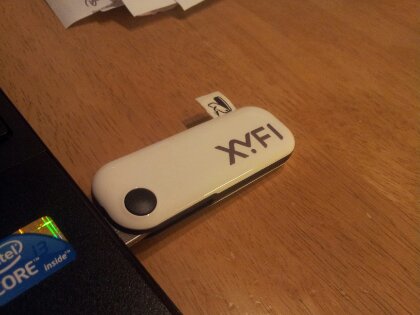
OK. SIM card in, check. Data card in (if you want). Check. Now, pop it into the USB port on your laptop and let it install some drivers. Here’s the XYFI sticking out of my laptop. Don’t worry too much about the small piece of tape sticking out – this was left on to allow me easier access to the SIM card etc from earlier (us reviewers tend to fiddle quite a bit).
Then, open a browser and just type “xyfi” in the browser.

Above you can see my network provider, which has magically changed to “3”. This is because I’ve swapped the SIM card out since I took the earlier shots (I ran out of data allowance). Changing the APN is fairly easy..
You can also see just how much data you’re using. This is an essential page if your data allowance is pegged at a certain amount each month. Don’t forget, you can access this page (which is password protected) over the WiFi hotspot too, so you don’t need it plugged into the laptop / PC. I’m simply going through the USB port currently because it’s where I need to setup the WiFi hotspot name, credentials and security type..
So, we’ve got the APN setup, we know that the XIFI is able to connect over the 3G SIM. Now we need to setup our WiFi hotspot. I’m going to call it “MyCarWiFi” and enter my own special password. You can go deeper into all these settings by the way, but it’s really not necessary unless you’re super-techy..
Here’s some of those techy details that you don’t really need to tweak. However, I’m glad they’re here. Twiddle the DHCP IP range to your hearts content. There’s also the ability to upgrade the firmware too, so your XIFI will always be up to date.
Oh, and if your SIM card has some text messages included there’s a messaging interface too. Just open your browser, enter your admin credentials and off you go. It’s easier to text people – just whack messages into your laptop keyboard.
Then, that’s pretty much it. You just start searching for WiFi hotspots on your laptop, tablet, smartphone, iPod, iPad or whatever. You’ll see the hotspot and then it’s just a matter of entering the password you set earlier..
If you still have the XiFi plugged into your PC or laptop then you should also see your additional storage (if you put a microSD card in earlier)..
The promotional video does a great job in showing you a little more of the device..
http://www.youtube.com/watch?v=c_qbj73ts_E
Conclusion
I was a little disappointed that the “worlds smallest” WiFi hotspot didn’t have an on-board battery, however the XIFI Power Extension is said to provide over 8 hours of operating time to the little XIFI. Stick that in your bag and that’ll last you all of the working day, which is pretty decent indeed. The official price of the XIFI is €124 (which works out at around £103).
After sticking it in the car I actually found myself expecting the hotspot to follow me everywhere. I could reach it from my office desk, from the lounge and even while at friends houses. Great if you’ve got a WiFi-only iPad, tablet or Kindle. The data monitoring is especially good, as is the speed of setup and the size of the thing. It tilts in the car adaptor and merrily flashes away when you’re using it or connecting to it. I was suitably impressed, and you can be too – just head over to the Option website for more details.
Link – XIFI Personal Hotspot
Cool gadget. There’s an alternative and cheaper option for an “in-car WiFi” – alas not as small or cool as XYFI: the Huawei E355. Reviewed earlier: http://www.coolsmartphone.com/2012/10/08/huawei-e355-3gwifi-dongle-review/
I think these sort of things are great if you don’t have a phone that allows you to tether. It’s a pity that you can’t stream the sd card contents over the wifi 🙁 I was in paahndland looking for a cheap USB charging lead last week and they had a little aaa battery box with a usb lead on it, I wonder how long that would power this little bad boy for? Would be very handy for summer lunchtimes in the park.